
-
- All Pipettes, Dispensers & Automated Liquid Handlers
- Mechanical Pipettes
- Electronic Pipettes
- Multi-Channel Pipettes
- Positive Displacement Pipettes & Dispensers
- Bottle-Top Dispensers
- Pipette Controllers
- Dispenser & Pipette Accessories
- Automated Pipetting
- Automation Consumables
- Automation Accessories
- Liquid Handler & Pipette Services
You are about to leave this site.
Please be aware that your current cart is not saved yet and cannot be restored on the new site nor when you come back. If you want to save your cart please login in into your account.
Website User Guide - eShop Features
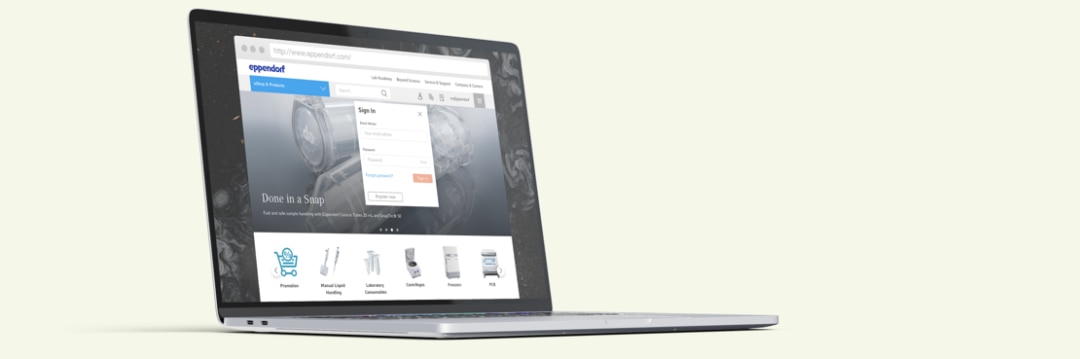
Order history
Quick Order
Recurring Orders
Label your plates
Change Website Country Settings
Price Confirmation PDF
Shopping Lists
Order History
1. Log in to your account
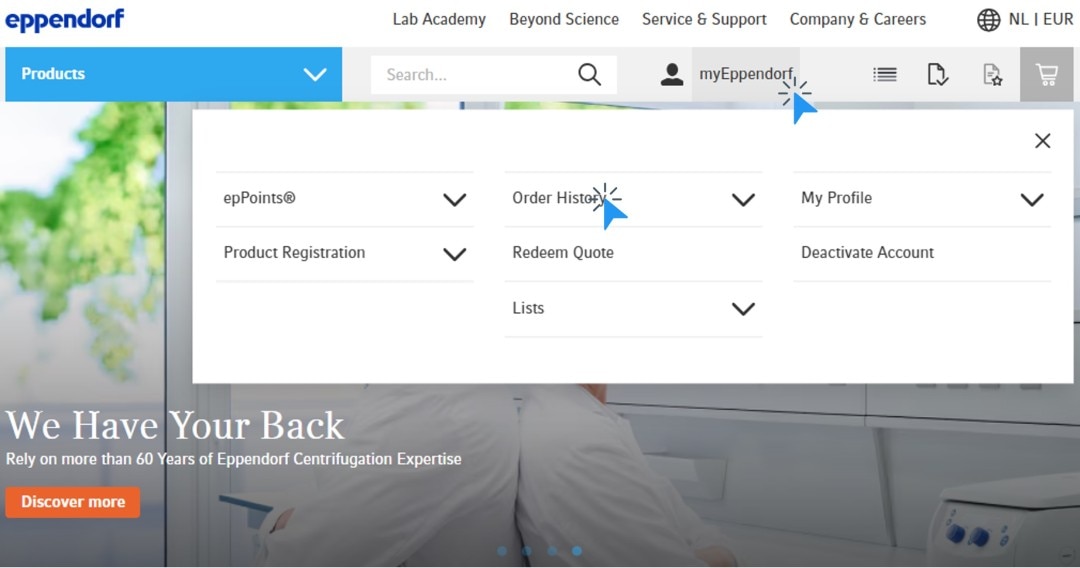
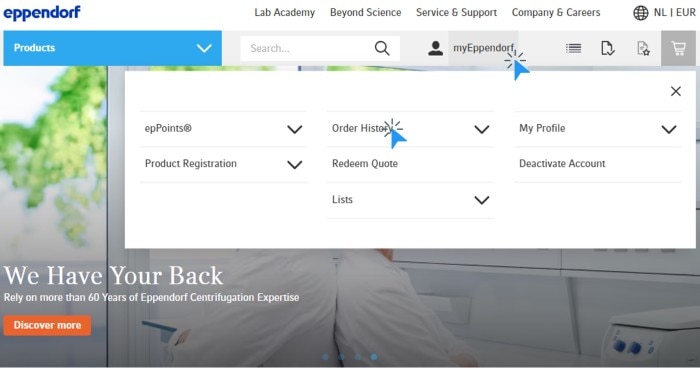
2. Click on „myEppendorf“ in the top menu
3. Click „Order History“
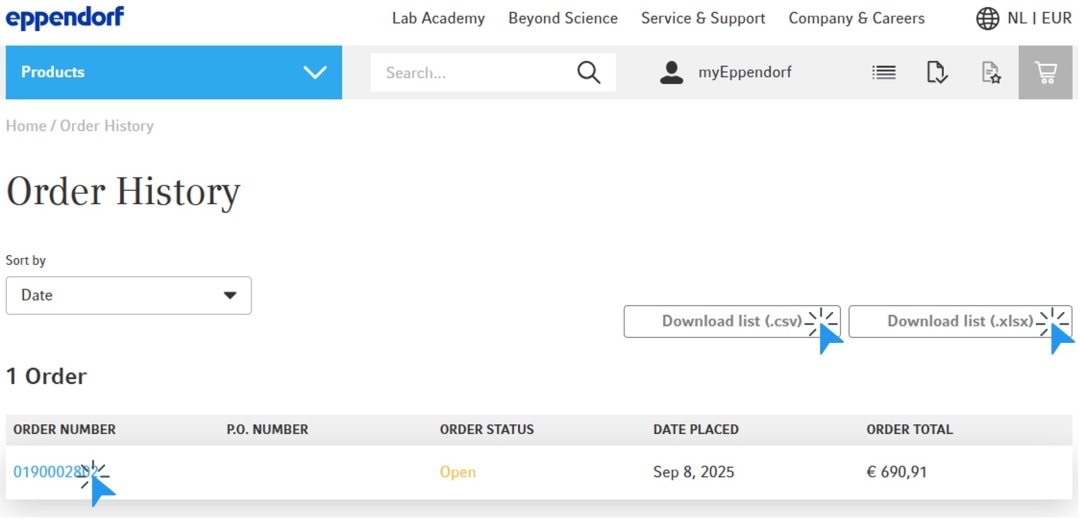
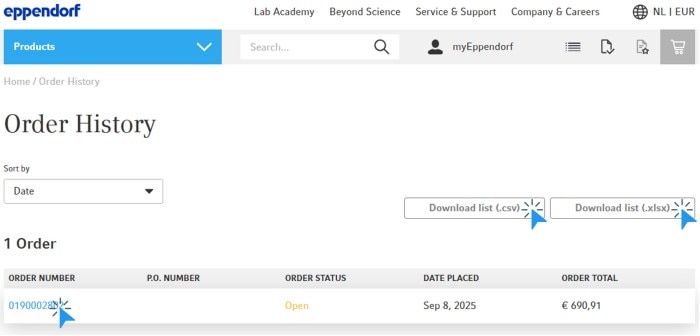
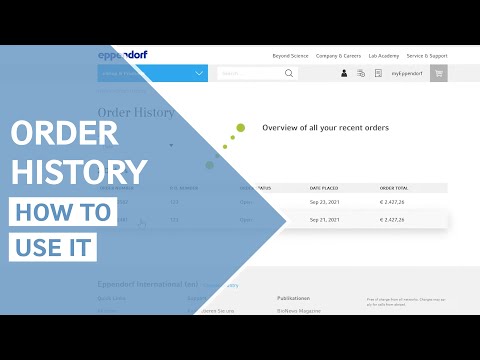
4. You´ll find an overview of all your recent orders
5. Click „Download list“ to export your orders as a csv or Excel file
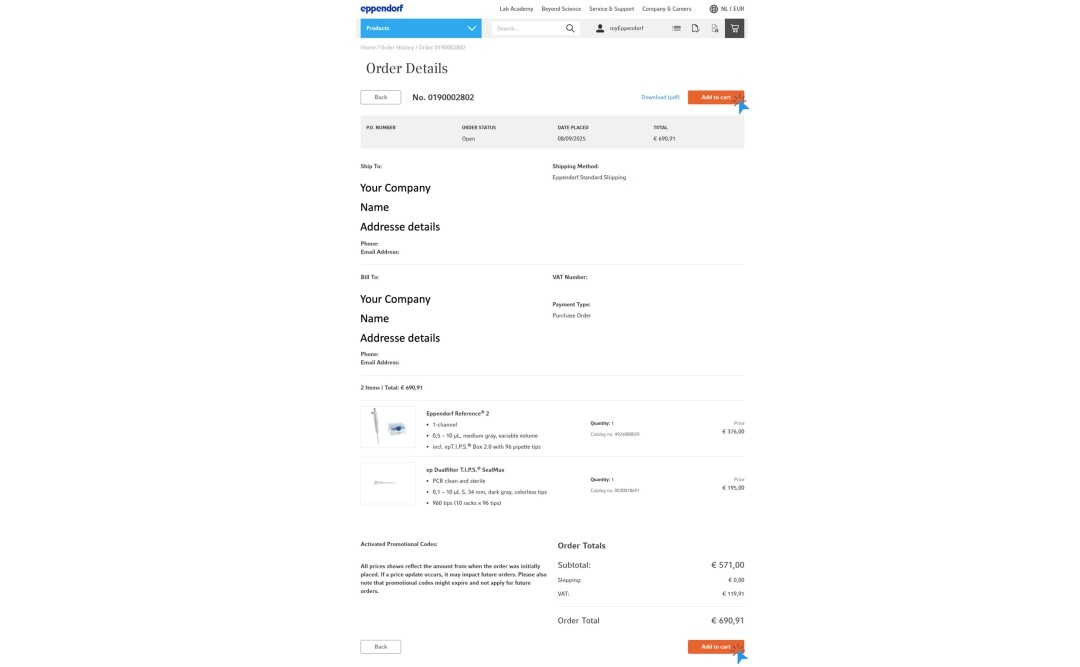
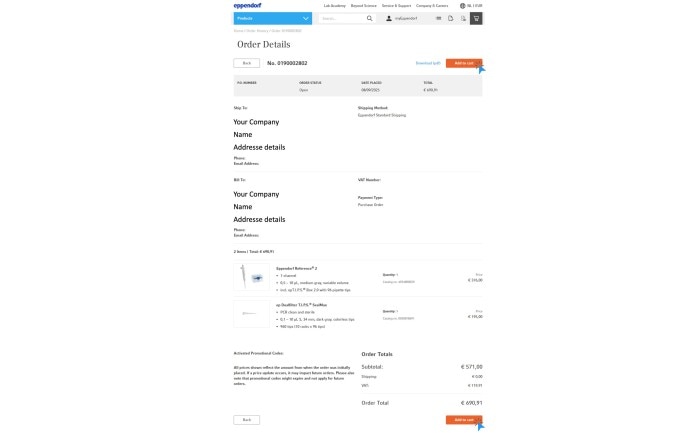
6. Click on an order to see all order details
7. Click „Add to cart“ to reorder the items from your previous order
Read more
Videos not loading, because cookies have been rejected. Change your
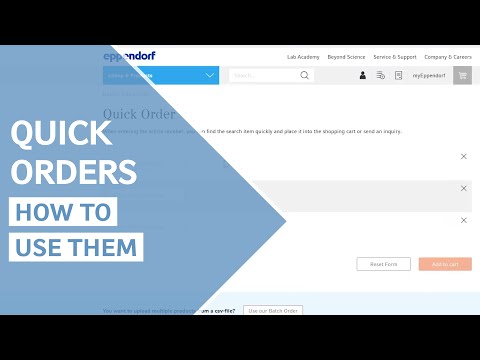
Quick Order & Batch Order
1. Log in to your account
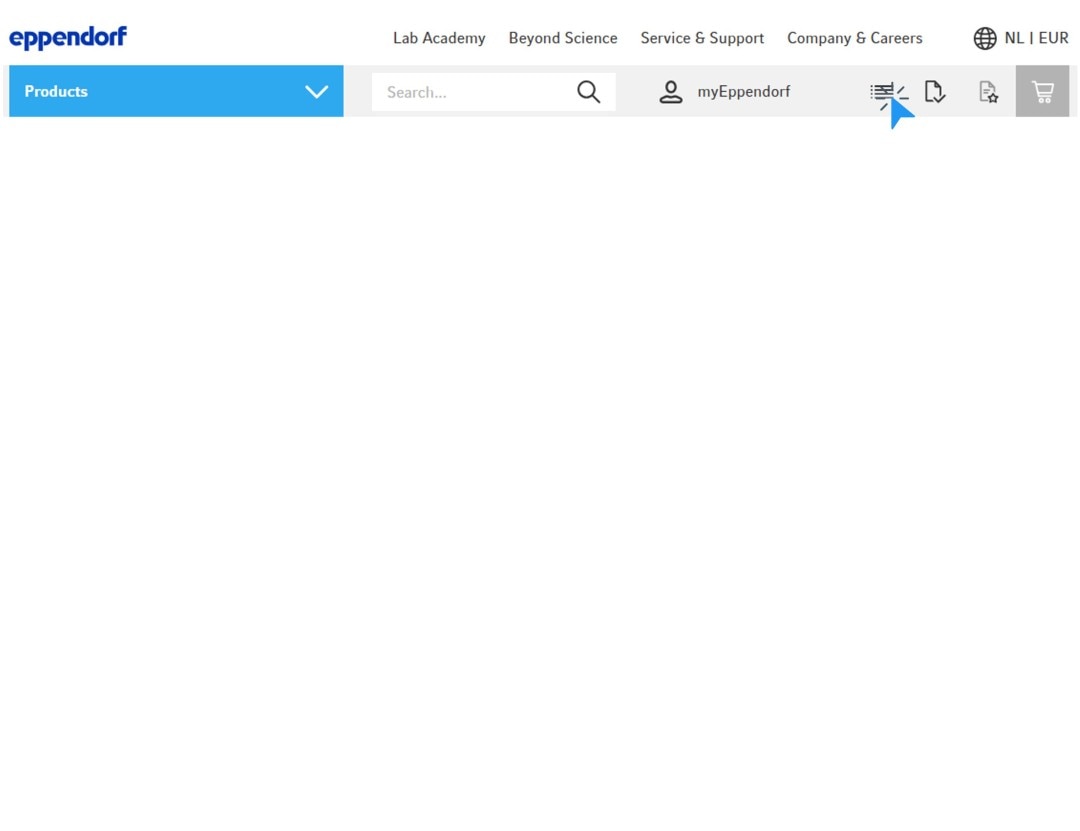
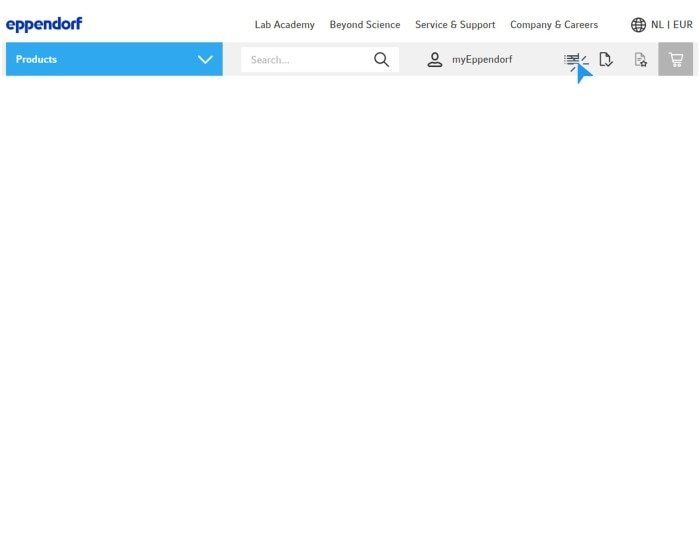
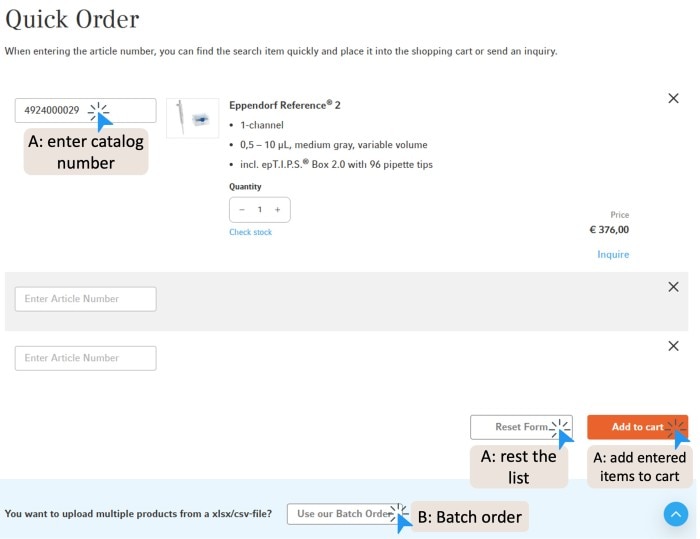
2. Click the “Quick Order“ icon in the top menu
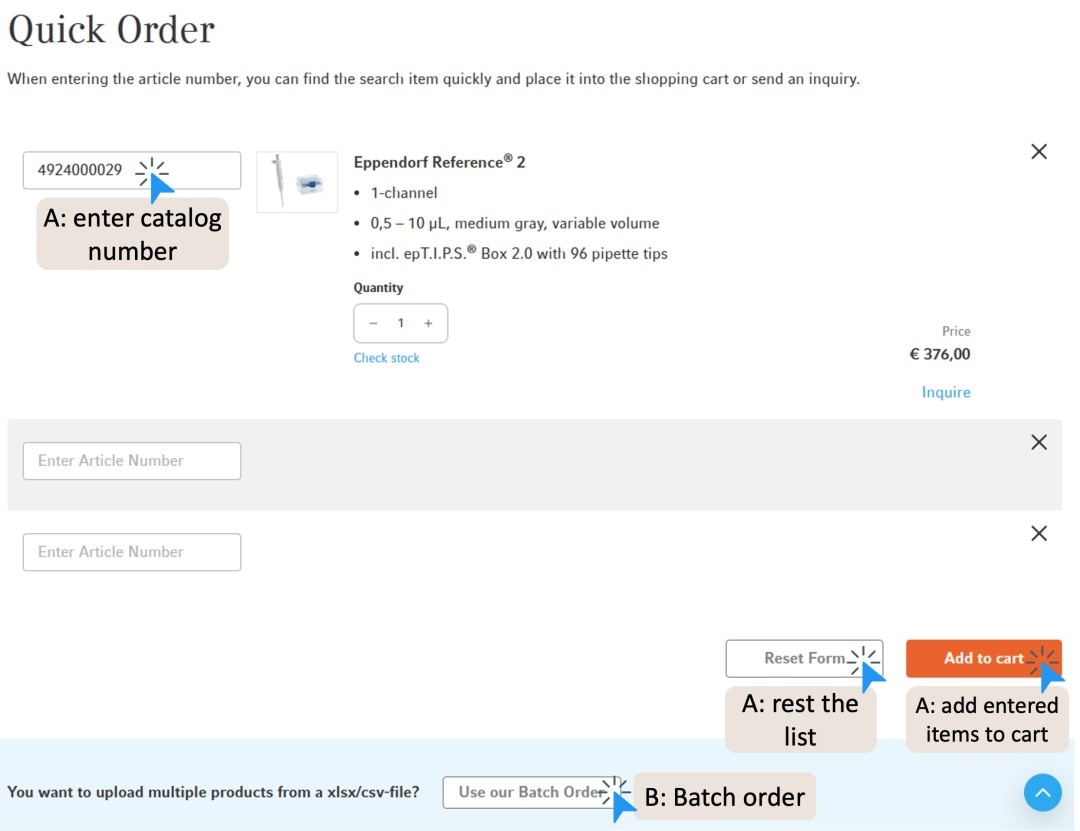
A. Quick Order: Enter the catalog numbers line by line. Click on “Reset Form“ to clear the list. Click on “Add to cart“ once all items have been added
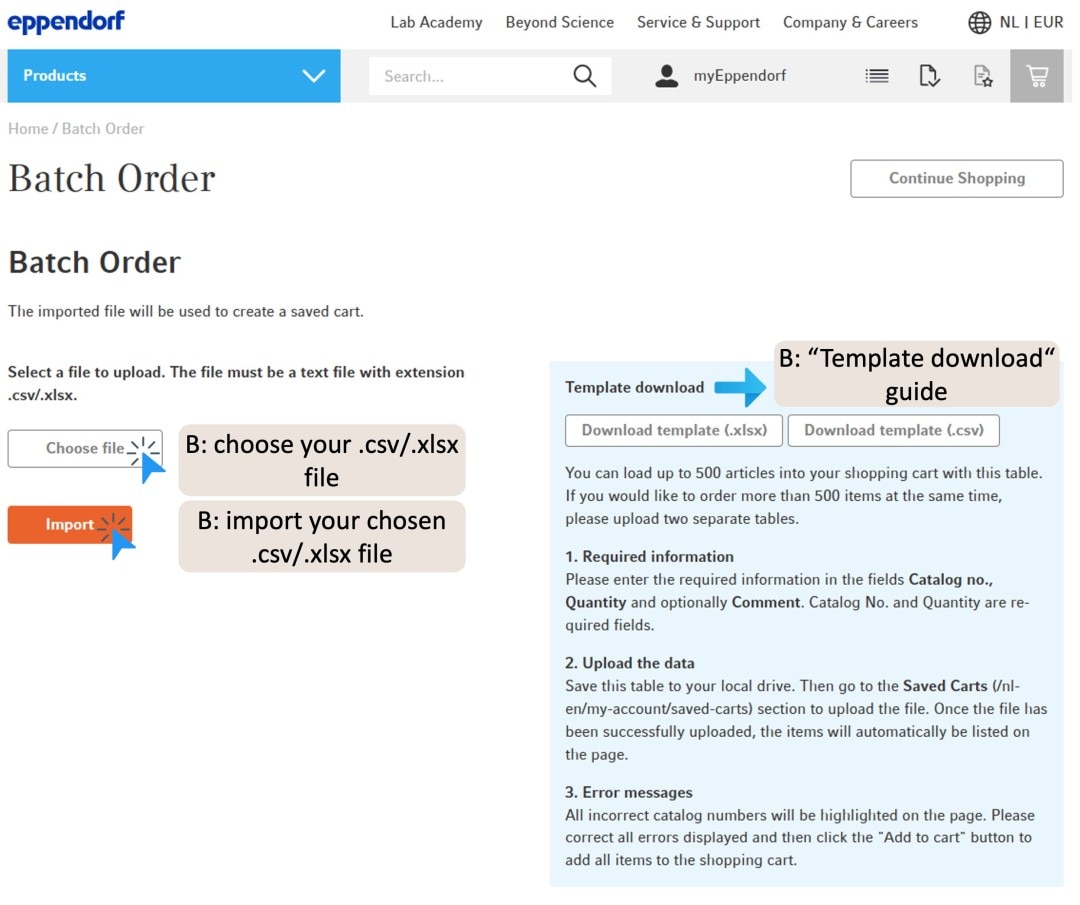
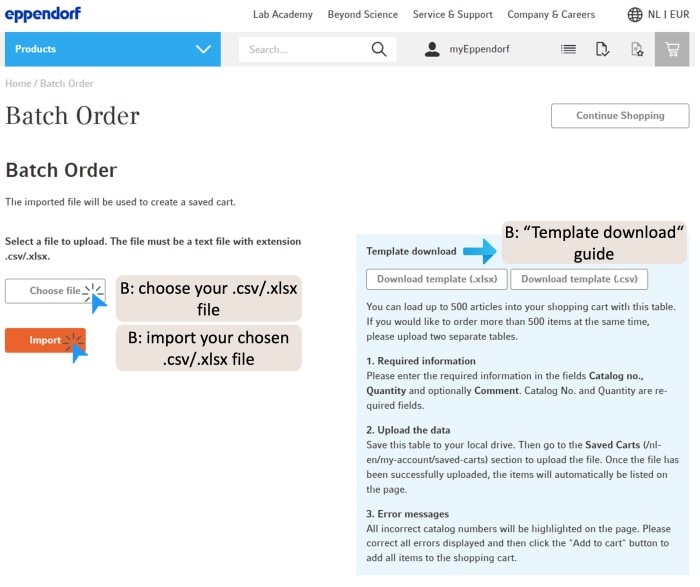
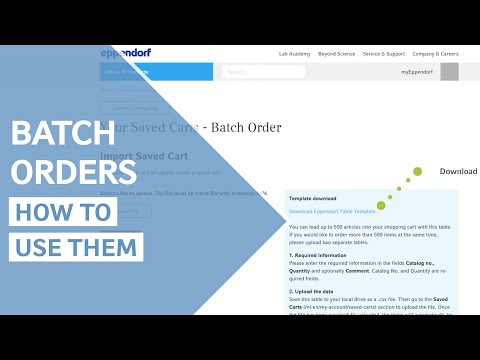
B. Batch Order: Click on “Use our Batch Order“ and then follow the “Template download“ guide. Click on “Choose File“ and select your .csv/.xlsx file. Click on “Import“Tip: If your catalog numbers start with a zero (e.g. 012345), make sure to paste them into Excel using Ctrl+Shift+V instead of Ctrl+V. This prevents Excel from removing leading zeros and ensures correct import of your batch order.
Read more
Feature may not be available in all countries
Read more
Videos not loading, because cookies have been rejected. Change your
Videos not loading, because cookies have been rejected. Change your
Recurring Orders
1. Login to your account
2. Add products to your shopping cart and click “Proceed to checkout”
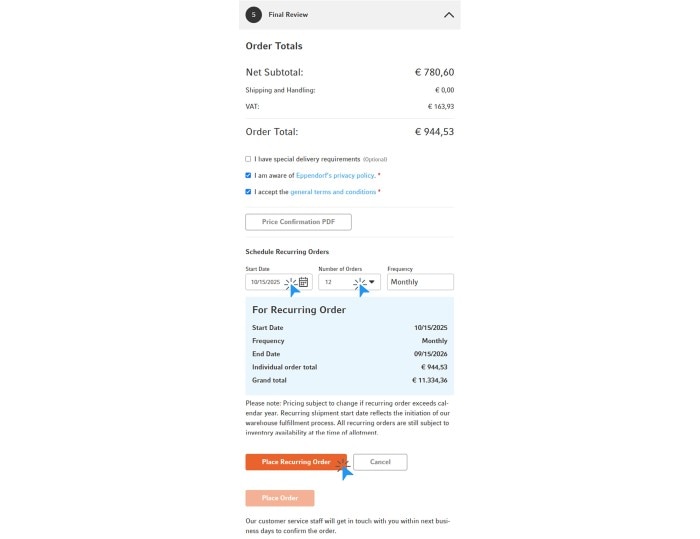
3. In the final checkout step, set the order as recurring by defining the start date and the number of orders
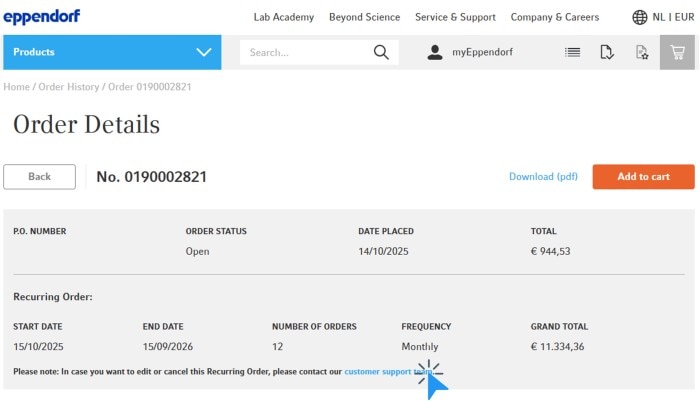
4. Click “Place Recurring Order“ to submit your order. You will receive a confirmation via email
Read more
PLEASE NOTE:
Orders will be triggered at defined start date and frequency.
Feature may not be available in all countries.
Read more
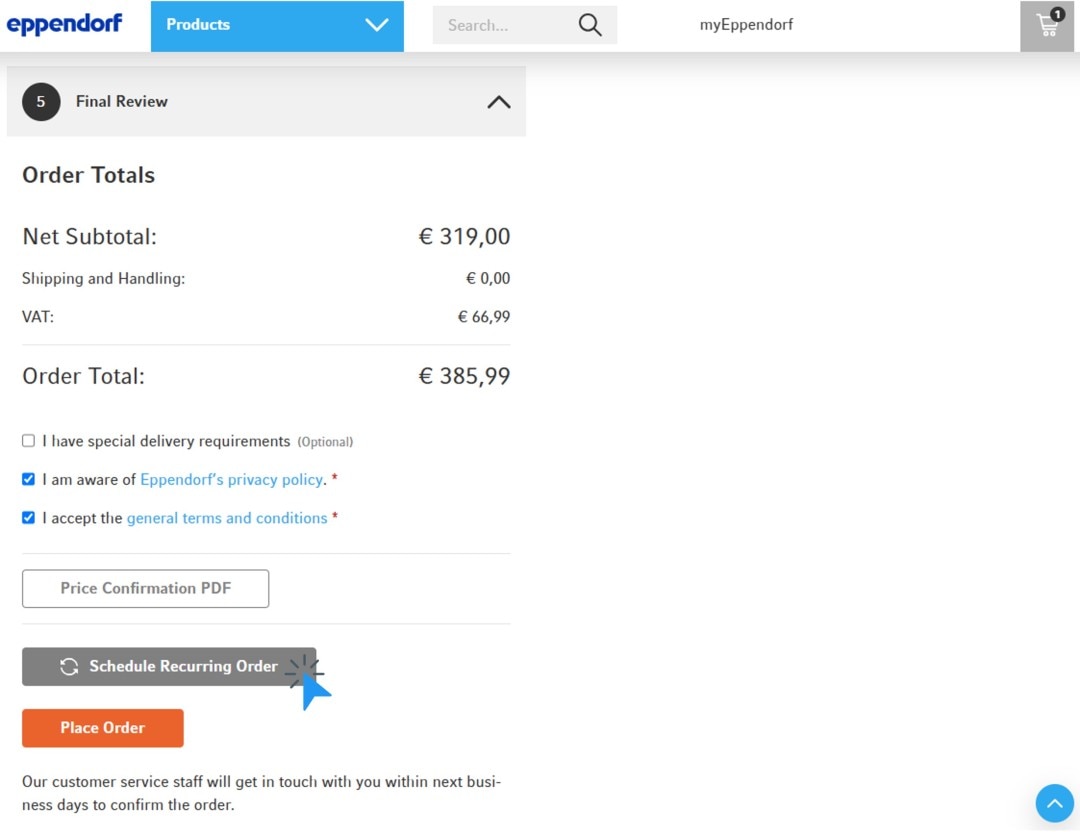
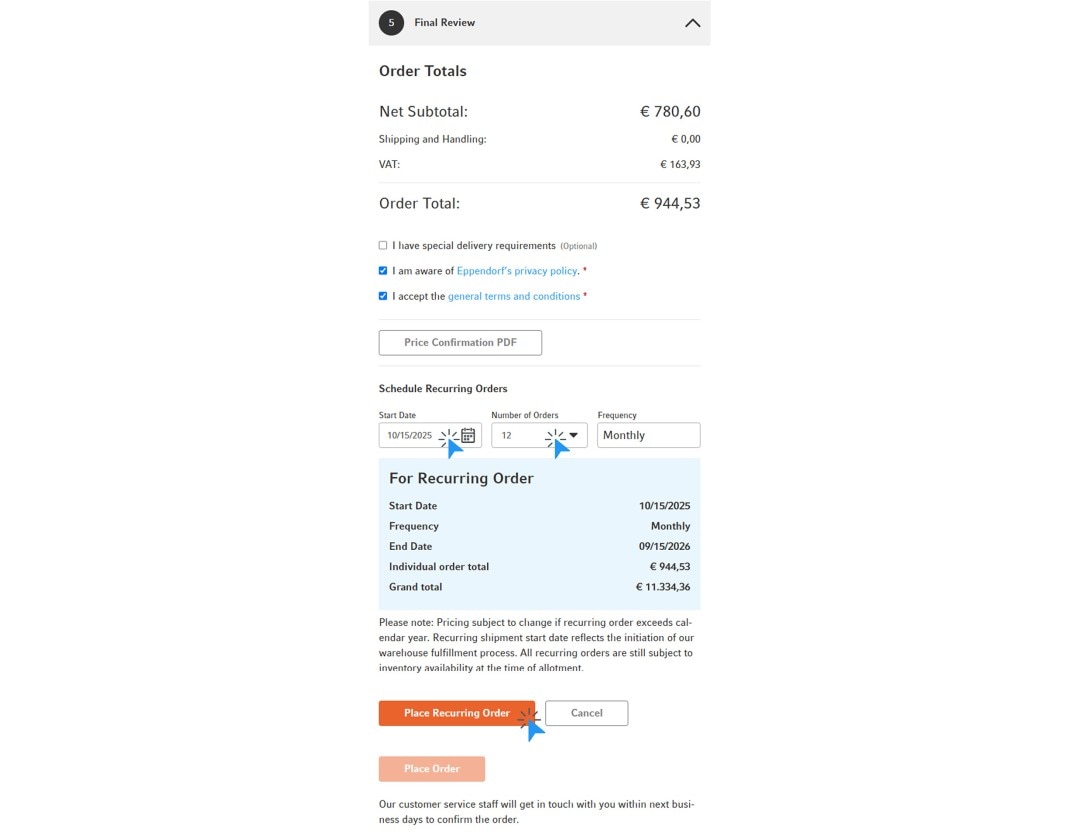
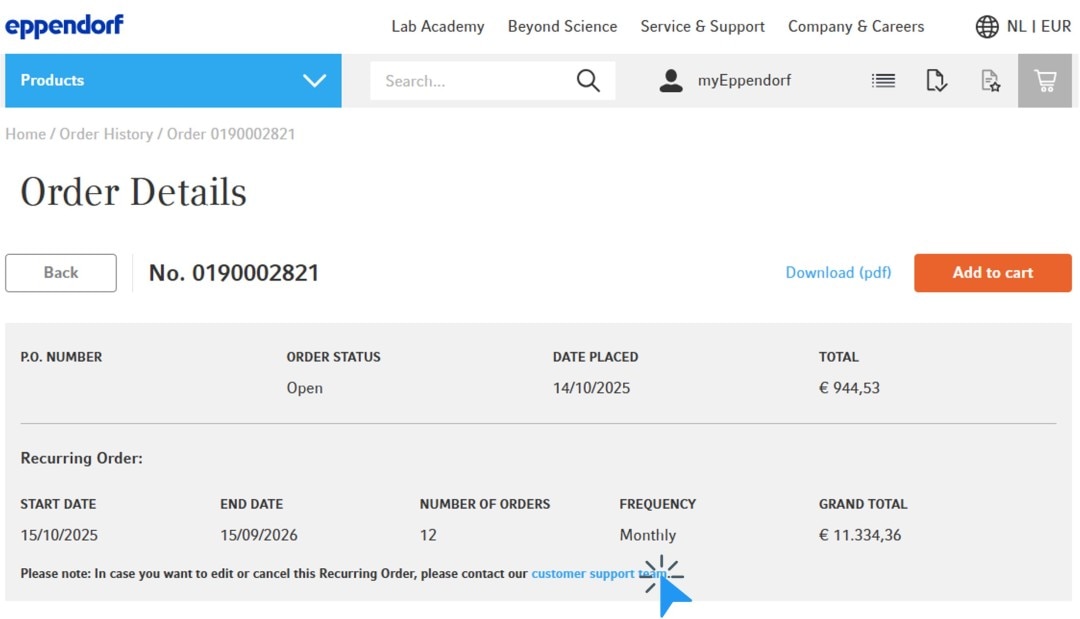
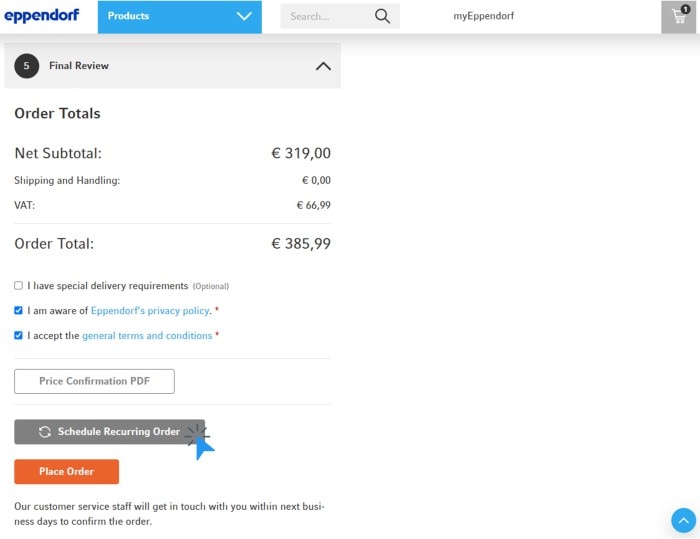
Videos not loading, because cookies have been rejected. Change your
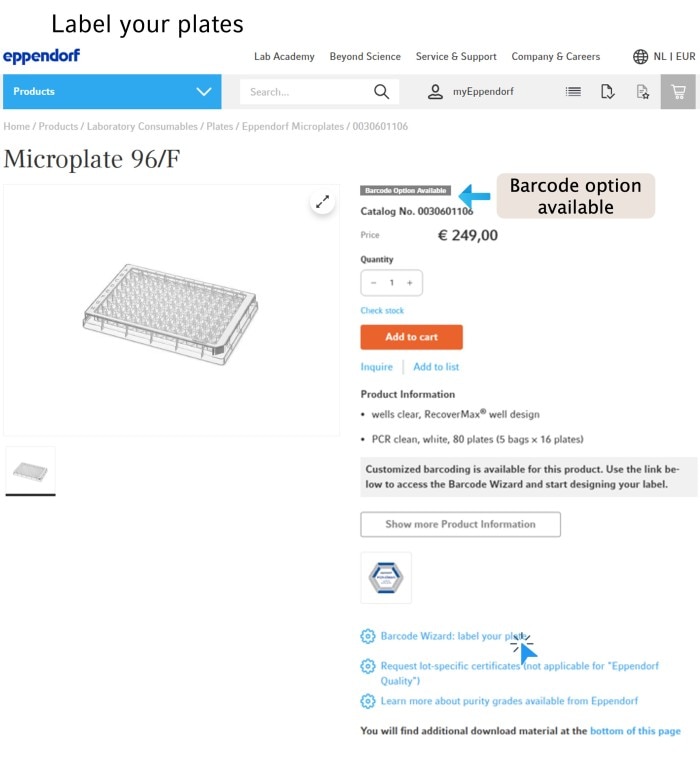
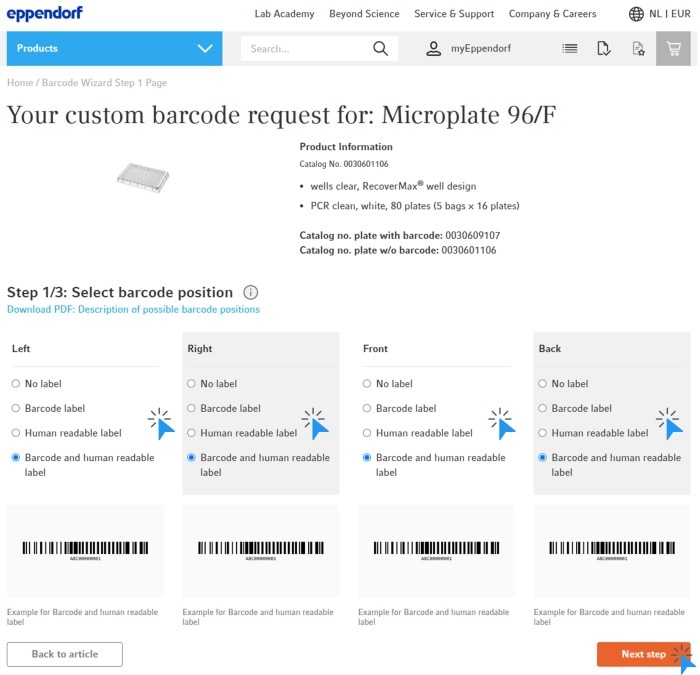
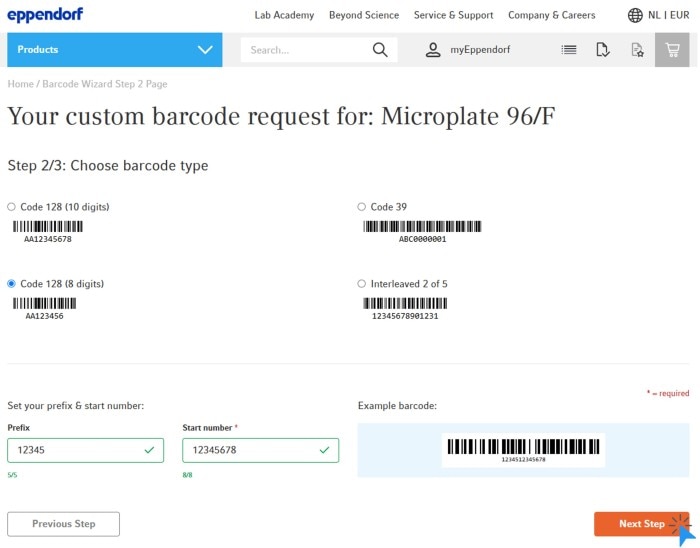
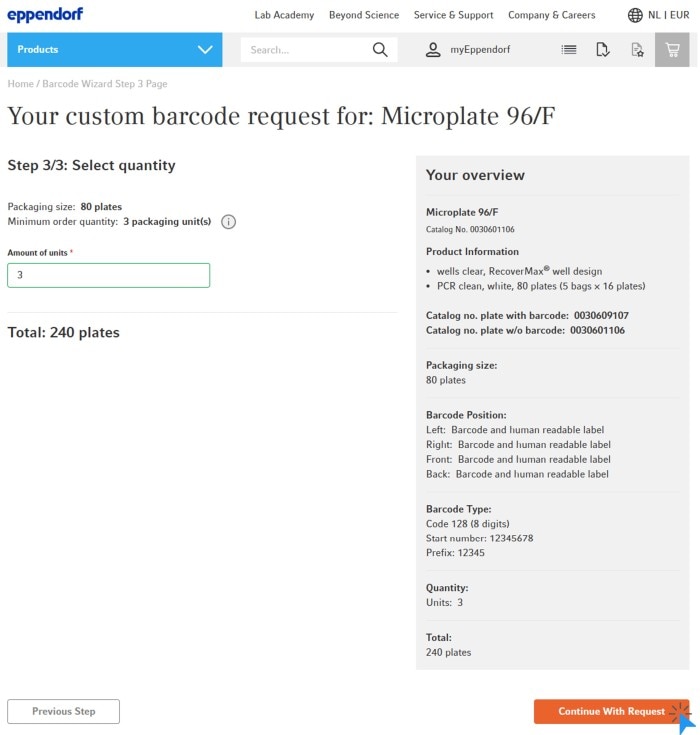
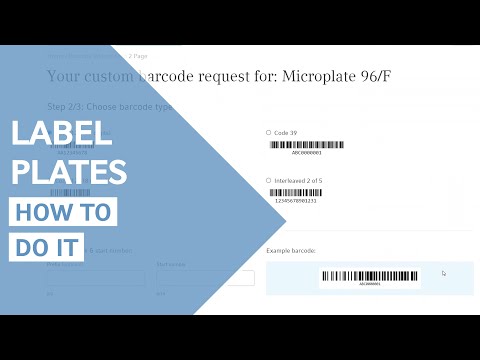
Label your plates
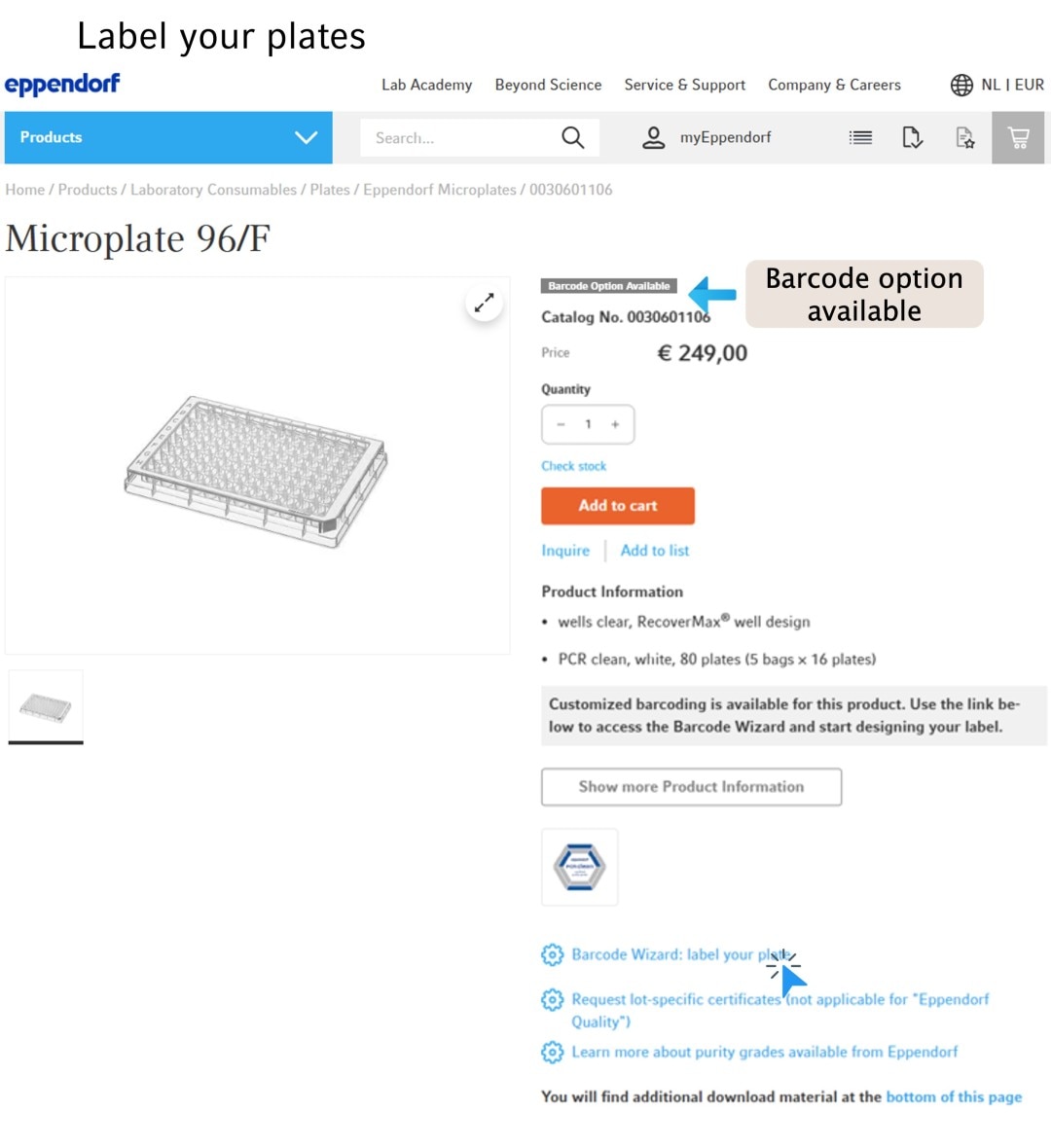
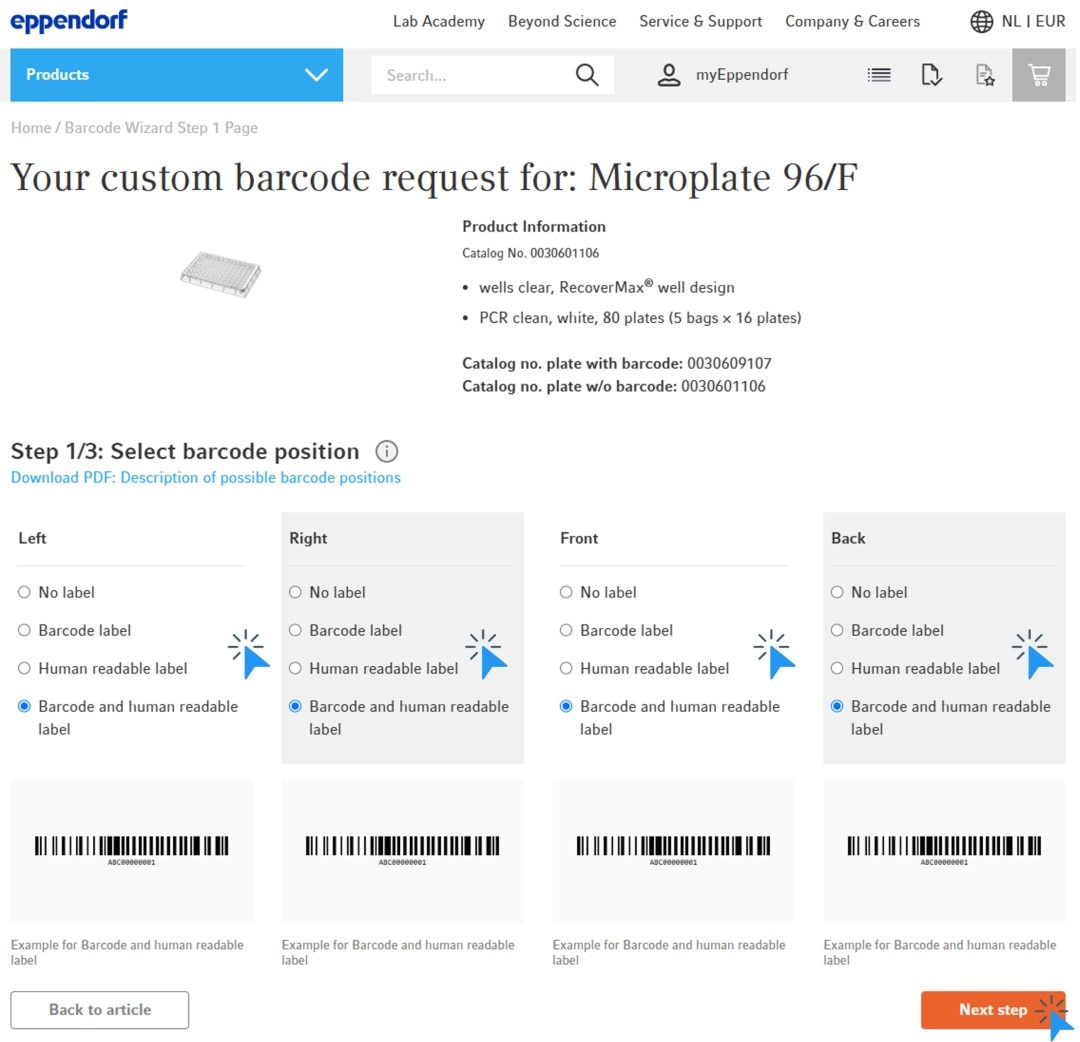
1. Navigate to the detail page of the relevant product and click the link to start the wizard. Tip: Look out for the badge „Barcode Option“
2. Step 1/3: Select the barcode position you need and continue by clicking the button „Next step“
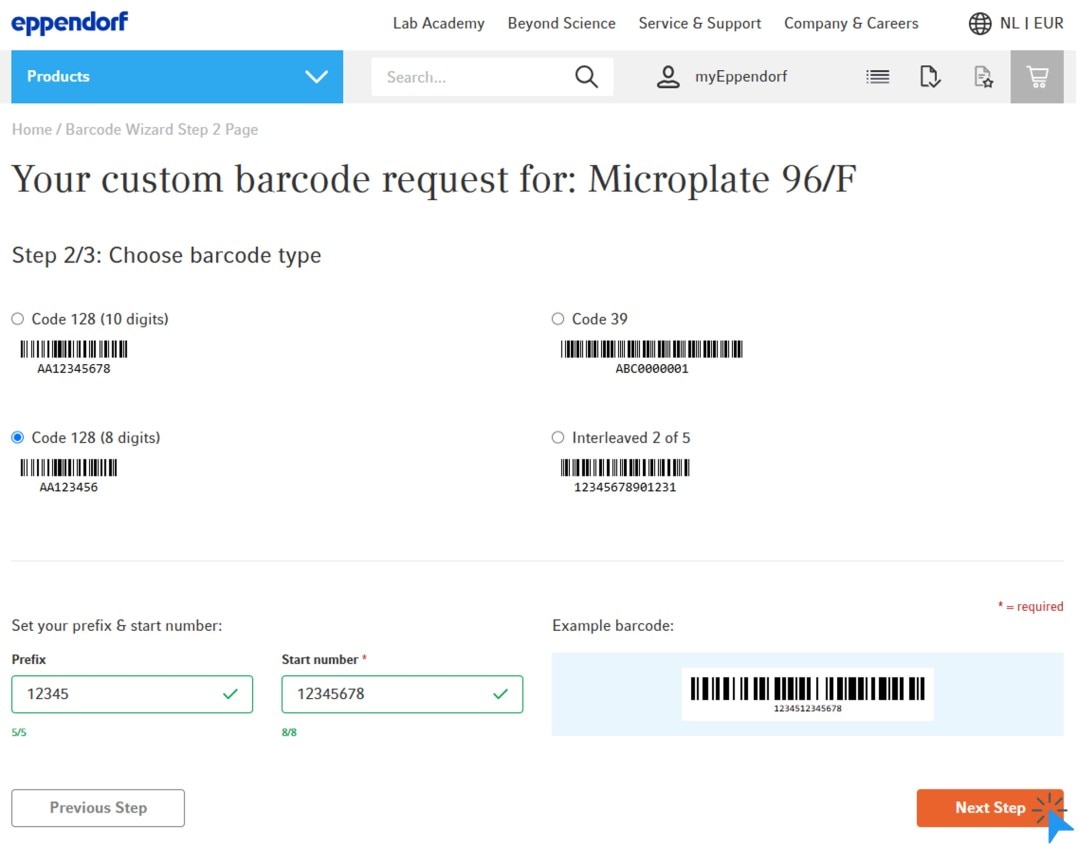
3. Step 2/3: Choose the barcode type, prefix and start number, then continue by clicking the button „Next step“
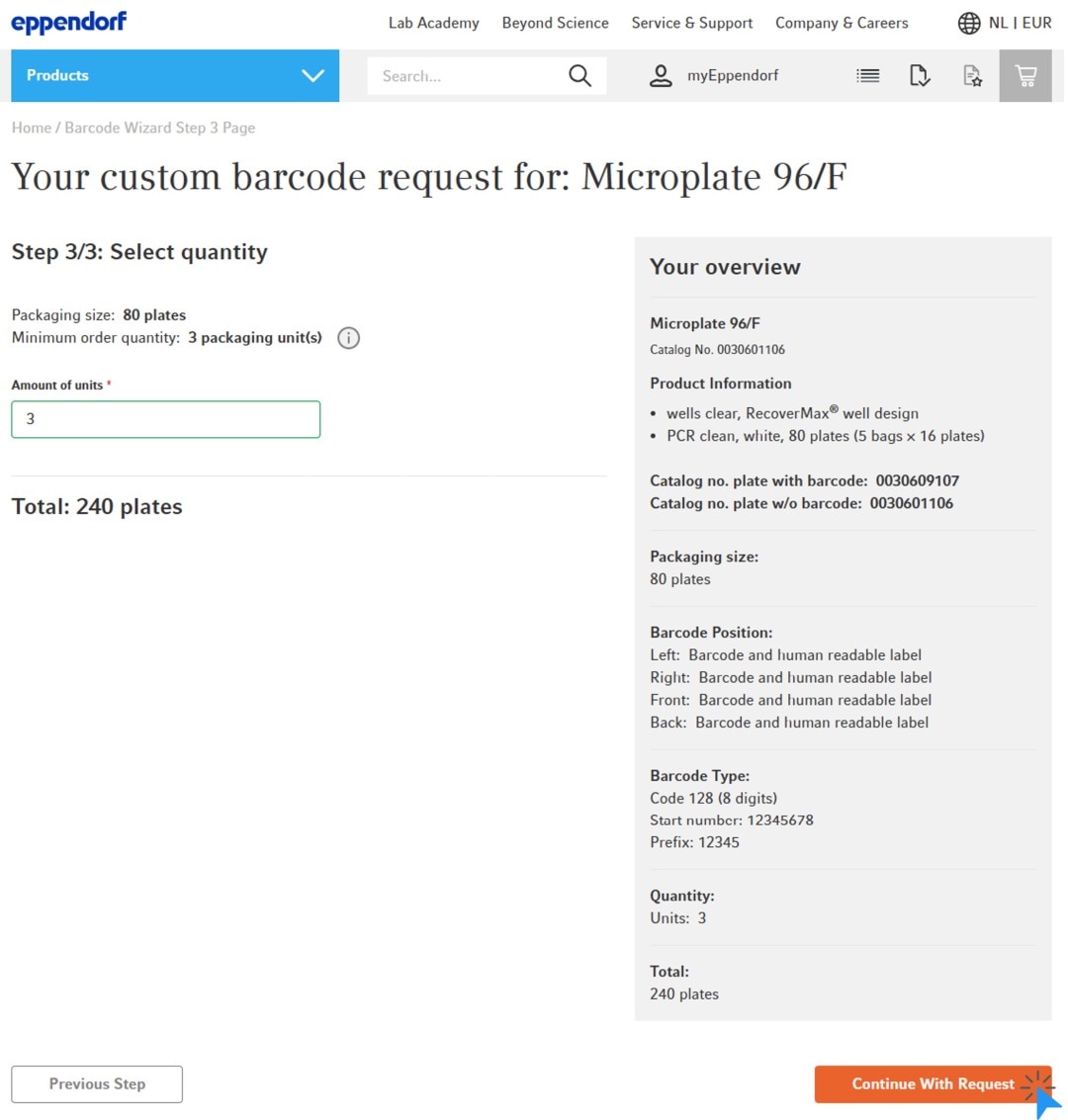
4. Step 3/3: Select the order quantity, then continue by clicking the button „Continue With Request“
5. Log in to your account with your email address and password, or follow the prompts to create a new account
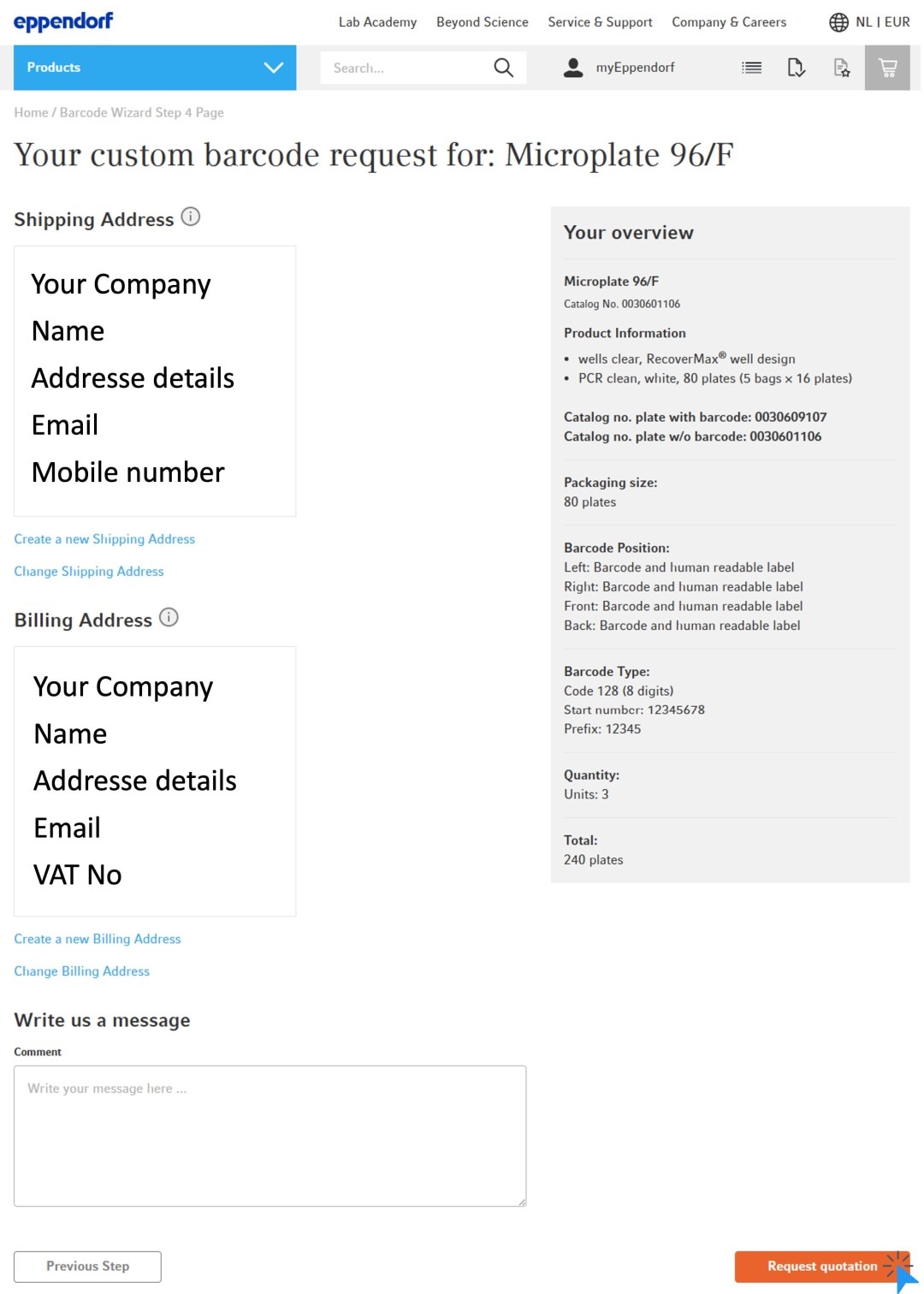
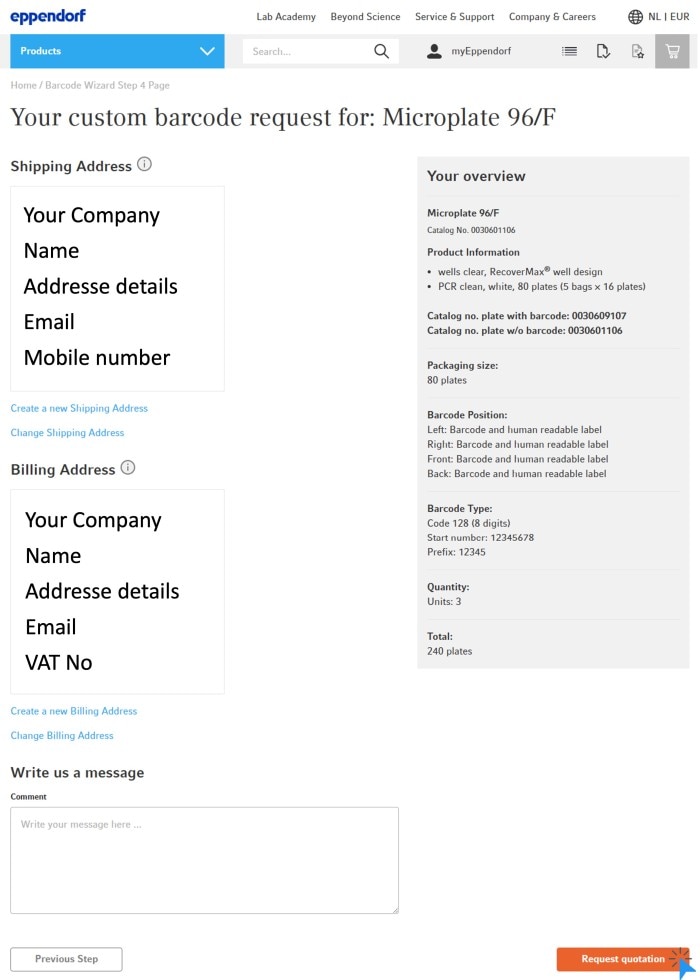
6. Check the details, select the shipping and billing address, write an optional comment, and finally click the button “Request quotation”
7. You will receive an email containing a PDF document with your barcode specifications. This document will also be sent to your Eppendorf representative who will send you a quotation for the selected and specified items
Read more
To download the Barcode Wizard PDF at a later time and for easy re-ordering, please navigate to: myEppendorf – Order History – Barcode Requests. If you are placing a re-order, please contact your Eppendorf representative for the project number prior to submitting the wizard.
Read more
Videos not loading, because cookies have been rejected. Change your
How to Change Website Country Settings
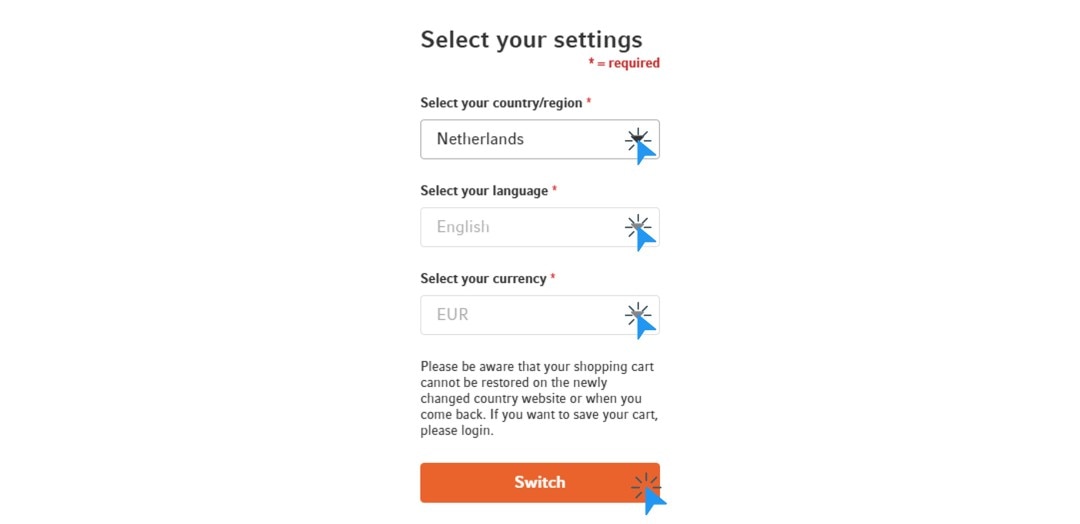
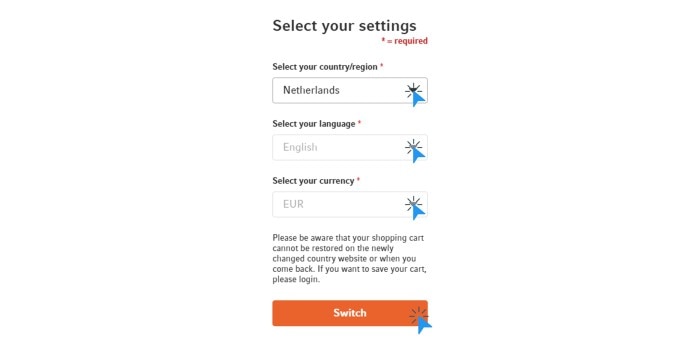
2. Select your country and, if applicable, the language and currency
3. Click „Switch“ to change the website settings
Read more
The availability of additional languages and currencies may vary by country.
Read more


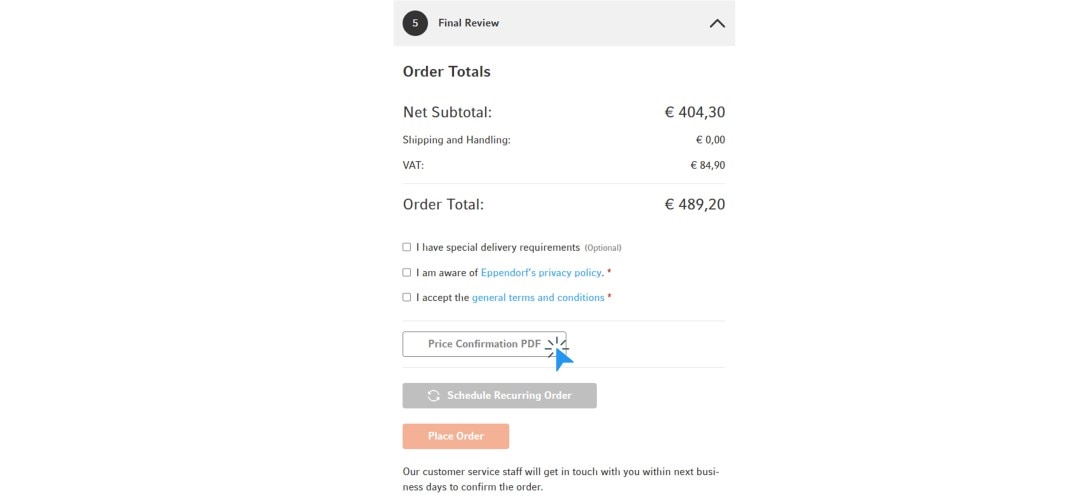
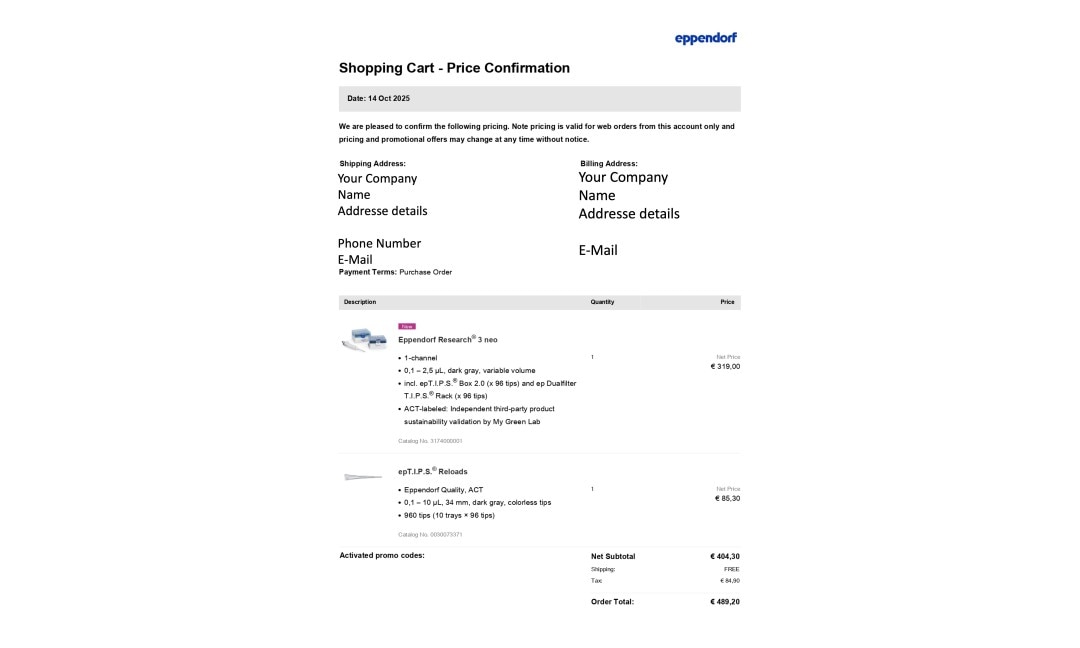
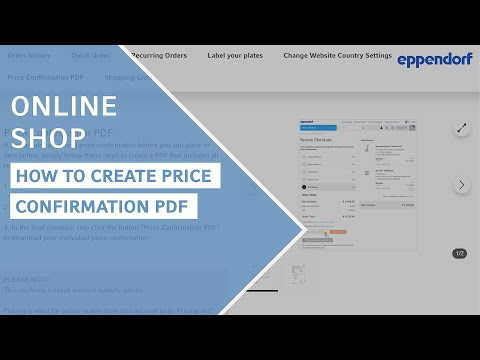
Price Confirmation PDF
1. Log in to your account
2. Add products to your cart and click “Proceed to checkout”
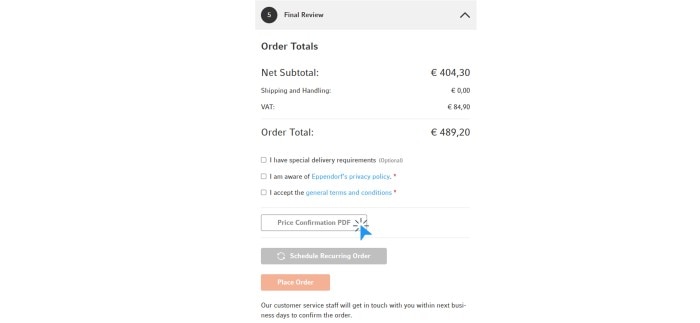
3. In the final checkout step, click the button “Price Confirmation PDF” to download your individual price confirmation
Read more
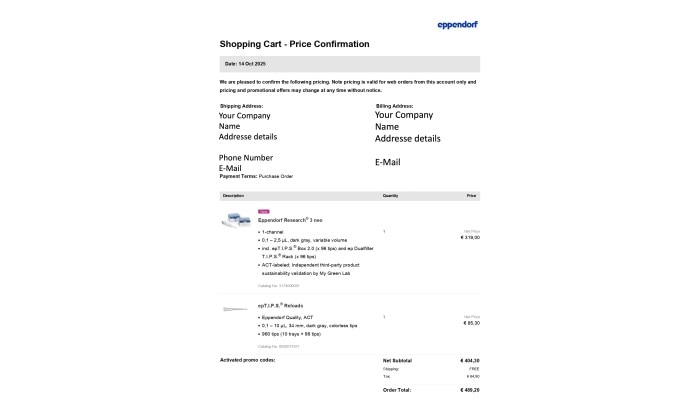
This confirms current account-specific prices.
Pricing is valid for online orders from this account only. Pricing and promotional offers are subject to change at any time without prior notice.
Feature may not be available in all countries.
Read more
Videos not loading, because cookies have been rejected. Change your
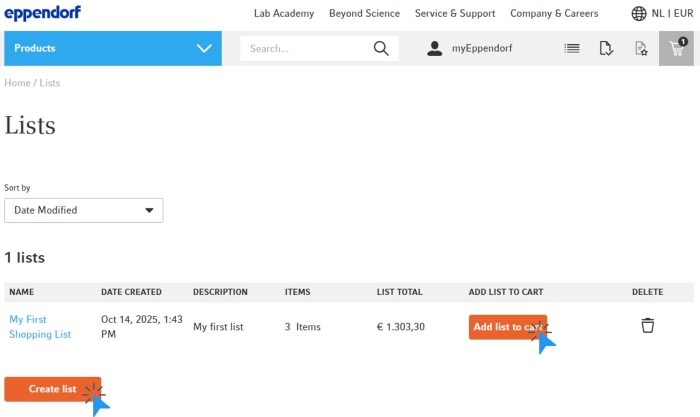
Shopping Lists
1. Log in to your account
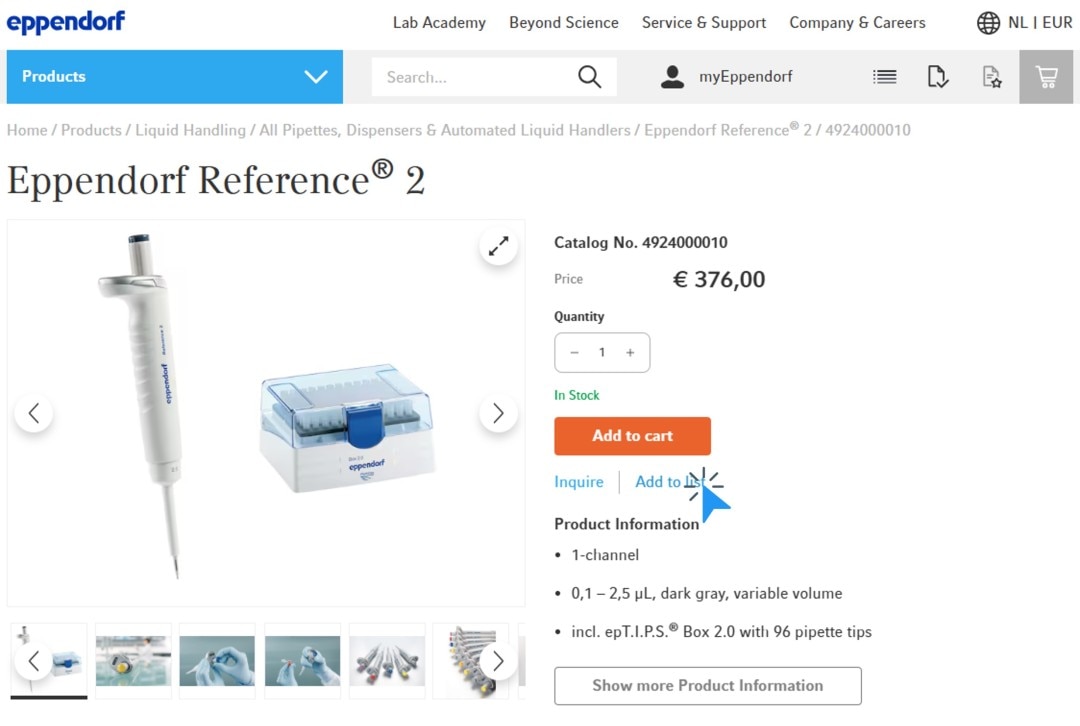
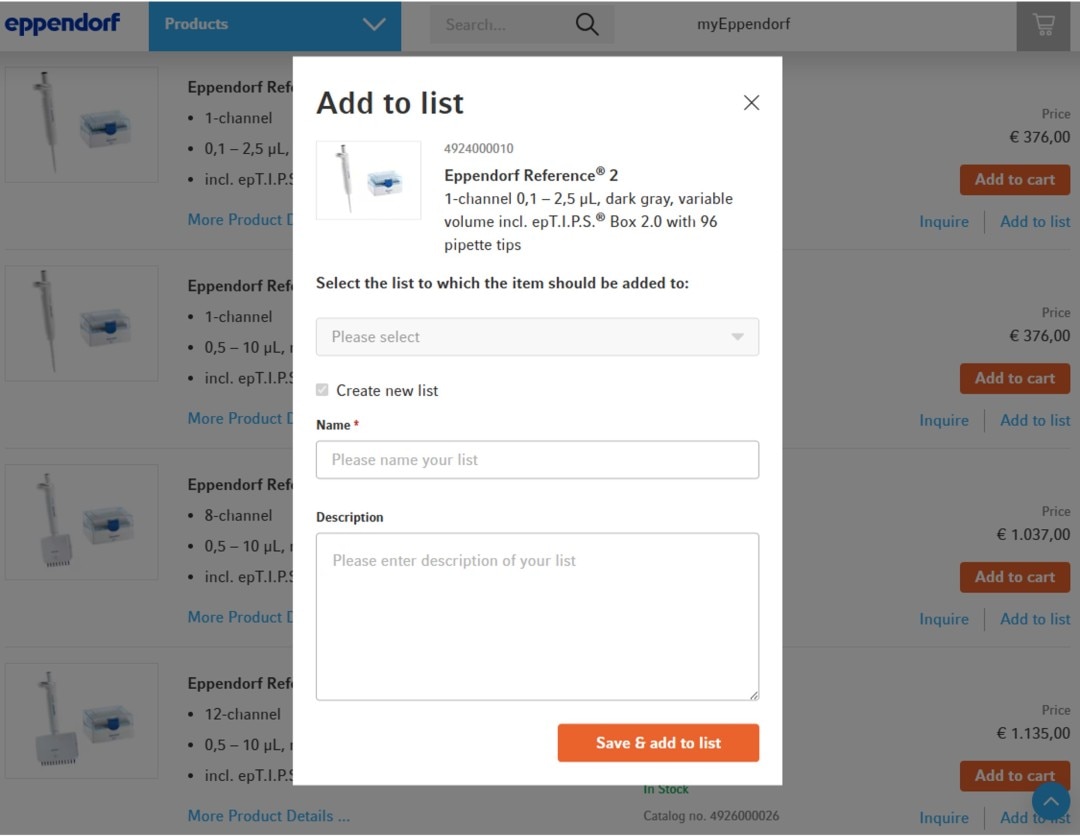
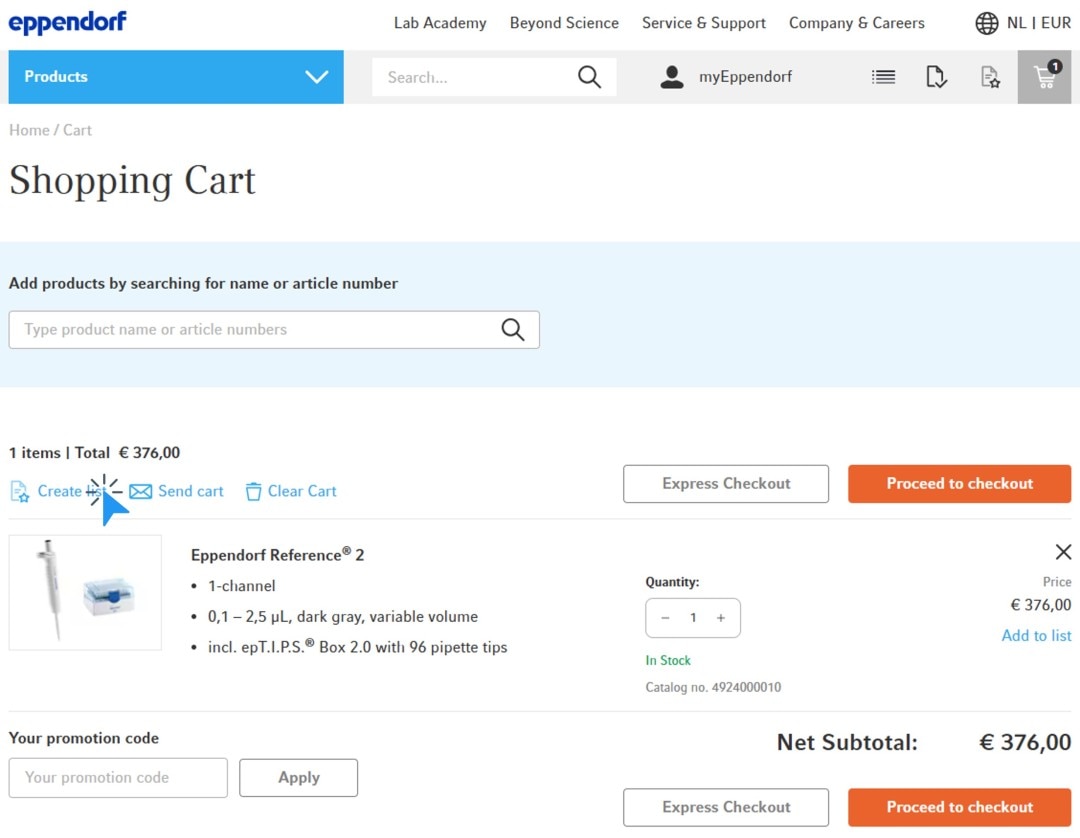
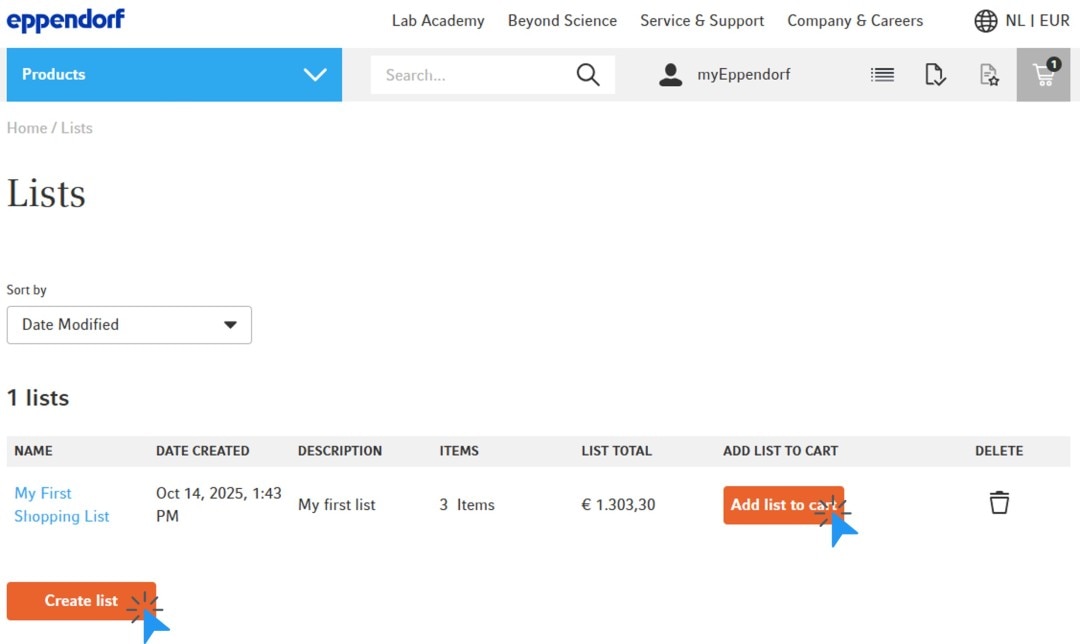
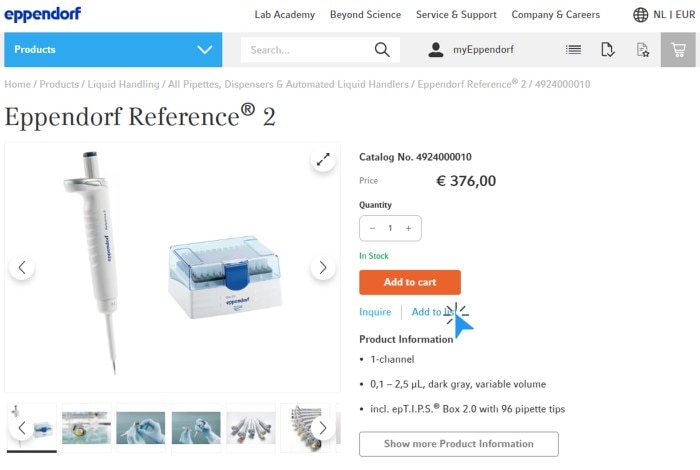
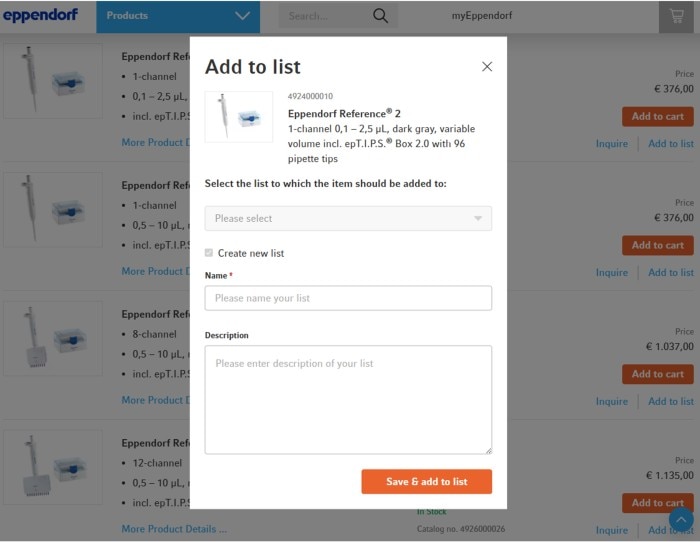
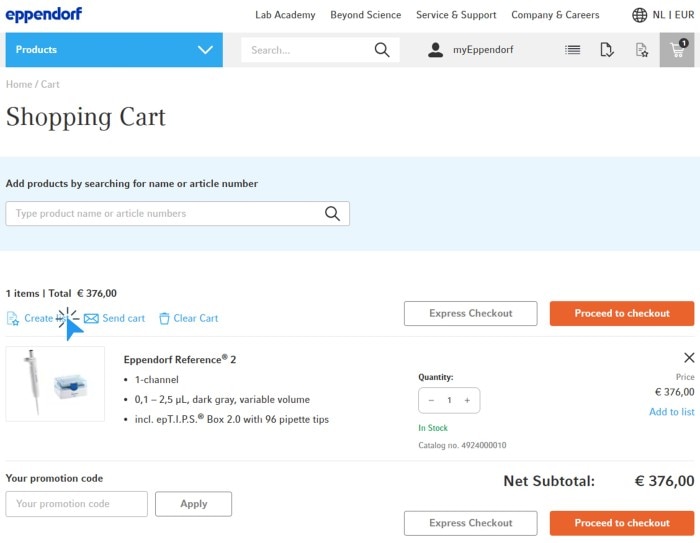
2. Create a new list
- within the shopping cart
- at the item level
- or on the List overview page
3. Add items to your list by clicking the icon and selecting a preferred list
4. Easily add single items or your entire list to the cart with a single click and proceed to checkout
Remember that you can manage your existing lists on the List overview page
Read more
Function is not available for quoted items and may not available in all countries.
Read more





Read more